



Feeling overwhelmed by receipts and endless expense reports? You’re not alone. Many small business owners and freelancers struggle to track every dollar spent.
TL;DR: Use Excel to set up an easy, accurate expense tracker.
Here’s how it helps:
• Excel lets you organize dates, amounts, and details in simple columns.
• A tidy tracker makes spotting trends and catching errors a breeze.
Follow this guide to create a clear expense tracker. Take control of your money today and see exactly where your cash is going.
Building Your First Expense Management Excel Template
Start by setting up your spreadsheet with clear, easy-to-follow columns. Define Date (MM/DD/YYYY), Category (like housing or utilities), Description, Amount, and Balance. This way, every transaction shows the details you need for a quick check or an IRS review. A simple template means fewer mistakes and faster record checks.
- Open a blank workbook and save it as "Expense Tracker.xlsx."
- In cells A1 to E1, type: Date, Category, Description, Amount, Balance.
- Enter a few example rows and then clear them before you start actual tracking.
- Add a balance formula (for example, =E2 + D3) and copy it down the column.
- Set the correct date format and use conditional formatting to make important details stand out.
Group your records by time period to make tracking even easier. You might use separate sheets for monthly, quarterly, or yearly logs. This lets you view spending trends quickly without sifting through a long list. Plus, adding a mileage column can be useful for business travel, calculating distance times rate for an extra layer of detail.
Following these steps gives you a clear, dependable expense tracker. This tool helps small business owners and freelancers keep accurate records, manage cash flow, and spot spending trends with ease.
Essential Formulas for Your Expense Management Excel Tracker
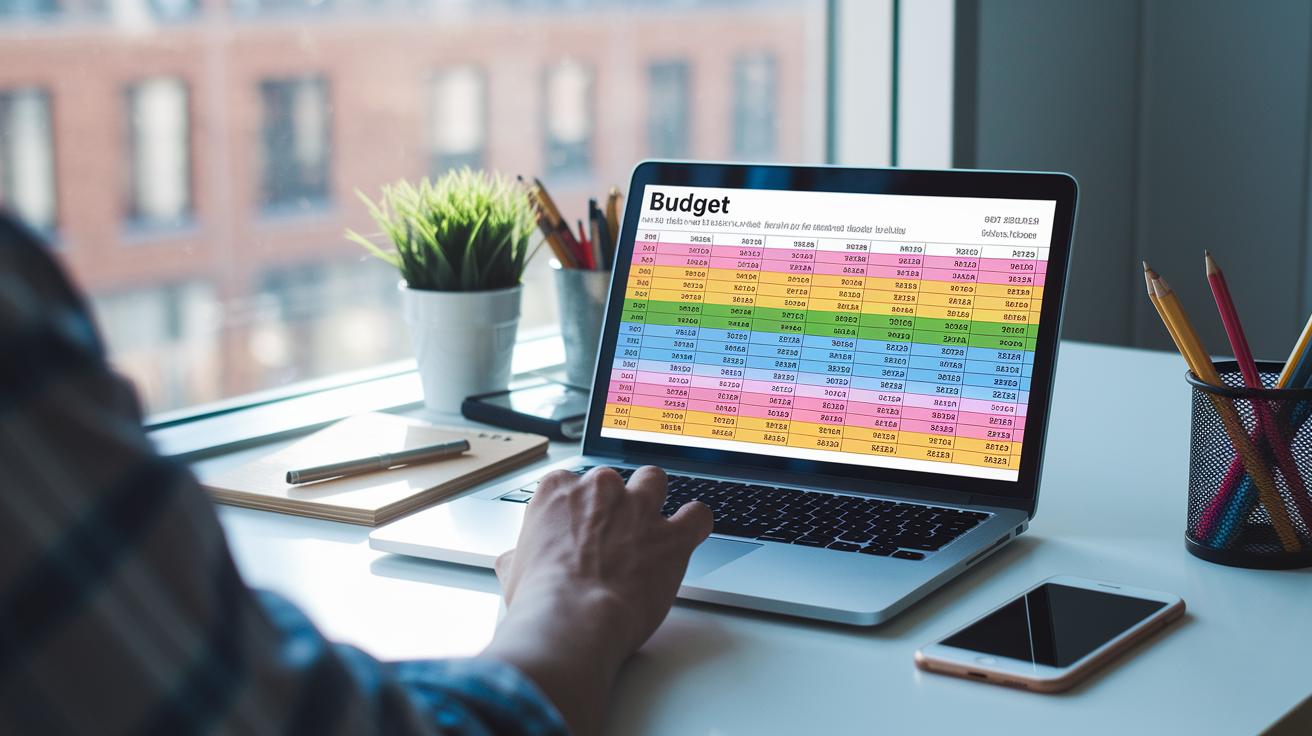
Formulas drive your Excel expense tracker by turning raw data into clear spending insights. They calculate totals automatically, cut down on errors, and let you focus on managing your money, not crunching numbers.
This free spreadsheet kit uses these core functions to deliver real-time updates on your expenses:
- SUM: Adds up expenses by category.
- AVERAGE: Finds the mean cost per transaction.
- VLOOKUP: Matches spending categories with budget limits.
- IF: Flags expenses that go over your set limits.
Update your cell ranges as needed and use absolute references (include the $ symbol) to keep your formulas accurate when you copy them across cells. This careful setup makes your tracker both flexible and robust, giving you a clear snapshot of your daily expenses.
Customizing Expense Management Excel with Categories and Layout
TL;DR: Enhance your expense spreadsheet by adding clear category tags, visual styling, and an automatic summary sheet for quick insights.
Start by inserting a Category column. Use Data > Data Validation to set up drop-down choices. This keeps labels consistent and reduces errors during audits. You can add a Tags column, too, to mark expenses like "Business" or "Personal." For instance, if you record an expense under Utilities, tag it as either Home or Office. This extra step makes your reports easier to analyze later.
Next, boost clarity with simple styling. Adjust column widths so texts aren’t cut off. Add borders and cell colors to highlight key areas. Use custom number formats to display currency properly. These tweaks make your spreadsheet easier to navigate and keep your data organized.
Finally, create a separate summary sheet that automatically totals your spending by category. Use basic formulas to pull data from your Category and Tags columns, then calculate monthly totals. This dashboard gives you a clear view of your spending trends and helps you see where you might be overspending or saving money.
Analyzing Expenses in Excel with Charts and Pivot Tables

TL;DR: Organize your expense data with a pivot table, visualize trends with a pivot chart, and use conditional formatting to flag overspending.
Start by creating a pivot table to sort your expense data. Select your entire data set and go to Insert > PivotTable. In the dialog box, drag the Category field into Rows and the Sum of Amount field into Values. This groups similar expenses and clearly shows your spending by category. Make sure your data is accurate and consistently entered for reliable results.
Next, build a pivot chart to see your monthly spending trends. Click anywhere in the pivot table, then choose Insert > Pivot Chart. Pick a chart style that fits your data and add slicers to let you filter by month or vendor. These interactive tools help you quickly spot spending peaks or unusual patterns while keeping your overall financial view in one place.
Finally, use conditional formatting to highlight expenses that go over your budget. On the Home tab, select Conditional Formatting and set a rule to mark cells where spending exceeds your threshold. This simple visual alert makes high-cost items stand out, so you can review and adjust your budget promptly.
Automating Your Expense Management Excel with Macros and Data Validation
First, use Excel's Data Validation tool to keep your Category entries consistent. Go to the Data tab, choose Data Validation, and set it to accept only specific values. This lets you create drop-down lists for Categories, Vendors, and Payment Methods. The result? Fewer mistakes and audit-ready data since users select from a preset list instead of typing manually.
Next, record a macro to remove last month’s rows or to automatically format new entries. To do this, open the Developer tab, click Record Macro, and perform the steps you need. When you're done, assign a shortcut or button. This simple trick saves time and keeps your workbook organized.
Here’s a quick VBA snippet that inserts today’s date each time a new line is added:
Sub AutoDate()
    If ActiveCell.Column = 1 Then ActiveCell.Value = Date
End Sub
Top Free Downloads and Templates for Expense Management Excel

Smartsheet’s Expense Report Template is a free tool that helps you track employee expenses and reimbursements with ease. It includes built-in workflows and a mileage calculator (used to track business travel costs) for accurate record-keeping. The template is set up to deliver clear, audit-ready reports. Need additional guidance on budgeting worksheets? Check out the "how to make a budget spreadsheet" guide at https://thefreshfinance.com?p=716.
SpreadsheetPoint’s Travel Expense Tracker makes it simple to manage travel costs by supporting per-diem rates. Its design lets you easily record per-diem amounts and related expenses. With structured fields to reduce errors and boost consistency, this tracker is a reliable choice for frequent travelers.
Vertex42’s Business Expense Template offers dedicated fields for project codes and tax categories. This setup helps keep your records organized and compliant with IRS rules. Its user-friendly design is perfect for small business owners who need to sort various expense types without a complicated setup.
Part-Time Money’s Monthly Expense Tracker is designed for clear, segmented financial records. It features separate tabs for Income, Expenses, and Balance, complete with pre-filled examples that you can clear out any time. This straightforward template helps freelancers and small firms maintain daily cash flow oversight with ease.
Maintaining and Auditing Your Expense Management Excel Workbook
Keep your expense tracker updated every day or week. This helps you avoid a backlog and makes audits stress-free. Track errors as they appear by grouping transactions with clear vendor names and purposes. This practice meets IRS rules and builds a strong financial oversight tool.
Always save backup copies of your workbook and run quick filter checks each quarter. This simple step protects your data and flags issues early. Since manual entry can cause mistakes, using backups and filters helps maintain a solid audit report.
If your team is growing, your manual spreadsheet might start to lag behind. Problems like scattered receipts and heavy manual work can slow you down. When this happens, try automation tools to ease data handling. Regular reviews of your workbook keep your records accurate and compliant, ensuring your expense tracker stays a reliable audit tool.
Final Words
In the action, you learned how to create an expense management excel template that tracks daily transactions and lays the groundwork for audit-ready records. We walked through setting up key columns, applying essential formulas, and tailoring the layout with drop-downs, charts, and automation.
The guide also shared free downloadable templates and tips to maintain and audit your workbook. This practical knowledge should give you the confidence to manage expenses more efficiently and stay ahead with your expense management excel skills.
FAQ
What is a free expense management Excel template?
The expense management Excel template sets up a ready-to-use tracker with key columns and formulas for logging expenses, income, and mileage—all available at no cost.
How does a simple expense management Excel template work?
The expense management Excel template works by organizing columns like Date, Category, Description, Amount, and Balance while automatically updating totals with built-in formulas.
Where can I download a monthly expense or income and expense Excel sheet for free?
The monthly expense or income and expense Excel sheets free download offer pre-filled sample data that you clear and reuse for monthly, quarterly, or annual transaction logging.
How do I use a personal expense tracker Excel free download?
The personal expense tracker Excel free download provides an organized ledger for daily transactions, with automated balance updates and sample data to help you maintain accurate records.