



TL;DR: Try our free expense report templates to simplify your receipt tracking.
Tired of messy expense tracking? You’re not alone. Managing receipts shouldn’t feel like a never-ending chore.
Our free templates help you record every detail, from transaction dates to vendor names, with ease. They streamline recordkeeping, boost audit readiness, and help cut down on filing errors.
In this guide, you’ll learn how to set up and customize these templates quickly so your expenses stay organized and your business runs smoother.
Ready-to-Use Expense Report Templates

Get organized fast with our ready-made cost sheet templates. These print-ready tools work in Excel, Google Sheets, and PDF. They include all the key fields: transaction date, vendor, amount, purpose, category, GL code/department tag, and receipt link. Use them to standardize your submissions, boost audit readiness, and cut down on errors. For example, our free Q2 template (covering April through June) offers a simple, user-friendly design for quick entries.
These templates suit different needs:
- Standard Expense Report Template: For everyday expense tracking.
- Travel Expense Report Template: Track meals, lodging, and mileage on business trips.
- Business Mileage Template: Record vehicle usage and related reimbursements.
- Event Budget & Expense Template: Compare estimated costs to actual spending for events.
- Project Expense Report Template: Organize pre-approved project costs clearly.
- Timed Expense Report Template: Ideal for weekly, monthly, or quarterly reports (see our monthly budgeting tips for ideas).
- Contractor Expense Report Template: Designed to capture expenses incurred by contractors.
Choose the option that fits your style, whether it’s a personal expense ledger, an office record, or a small business tracker. For larger organizations, expense management solutions add extra features to keep your reports both accurate and compliant.
Customizing Your Expense Report Template

Start by giving your expense report a look that matches your brand. Change your font and color choices, and add your company logo at the top. Create clear header sections for details like employee name, report period, and manager approval so everyone knows what to expect.
Next, make your report more useful by adding charts and graphs to show spending trends or category breakdowns. Insert formula fields that update totals automatically. For example, set up an auto-sum in the “Amount” column to keep your totals accurate as new entries come in.
Finally, lay out your table to meet your internal guidelines. Label each column clearly with headings like date, vendor, expense category, amount, and receipt status. This method will help you build a professional, brand-consistent expense report that follows your company’s financial rules.
Using Excel and Google Sheets for Expense Report Templates

TL;DR: Use Excel's auto-calculations and Google Sheets' real-time sharing to keep your expense tracking clear and efficient.
Excel comes with built-in templates that make tracking expenses a breeze. These templates automatically calculate totals and let you easily record details like date, description, amount, and payment method. They even use simple color rules to flag unusual entries so you can spot mistakes quickly.
Google Sheets stands out when you need to work as a team. Its cloud-based setup means everyone can update the same spending log at the same time, cutting down on errors you might see with paper reports.
When building your expense report in Excel, try these steps:
- Use auto-sum formulas for running totals (see how to make a budget: https://buzdaily.com?p=100).
- Set up color rules to highlight odd entries.
- Add dropdown menus for consistent categories.
- Embed charts and pivot tables to view trends like a mini finance dashboard (https://thefreshfinance.com?p=119).
If your expense tracking needs grow over time, remember that Excel might slow down with too much data. In that case, Google Sheets offers a flexible, online alternative that keeps your records updated continuously and minimizes manual data entry.
Sample Expense Data and Table Layouts for Templates
TL;DR: Use this sample expense table as a blueprint to track spending quickly and clearly.
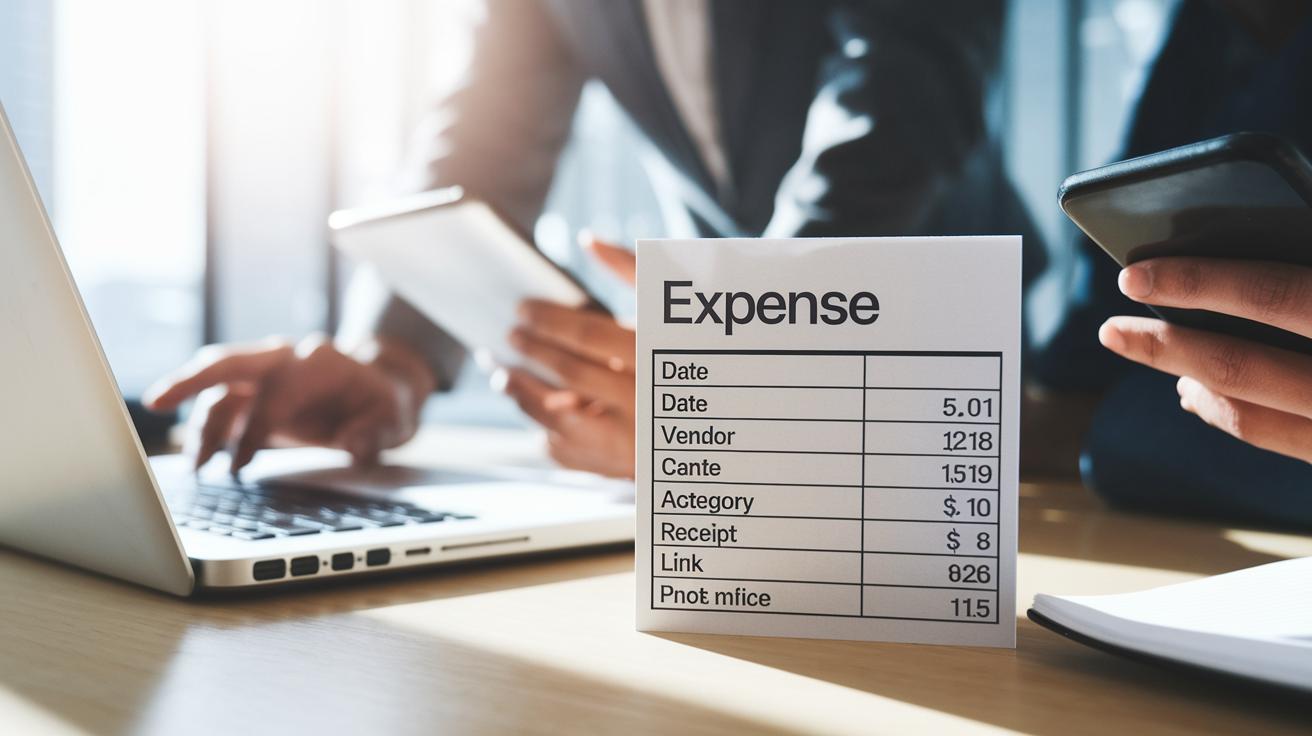
This guide shows you a ready-made expense table to build your own spending tracker. Each column has a clear purpose to help you sort and review your expenses.
• Date: The day when the expense happened. This helps you group expenses by day or month.
• Vendor: The name of the shop or service provider where you spent money.
• Category: The type of expense (like travel, meals, or supplies) so you can see where your money goes.
• Amount: The cost with a currency symbol to highlight the actual spending.
• Receipt Link/Status: Marks if a receipt is attached or if the expense is still under review. You can expand on this by adding GL codes or department tags if needed.
Below is an HTML table example with four sample expense entries:
| Date | Vendor | Category | Amount | Receipt Link/Status |
|---|---|---|---|---|
| 2023-06-15 | Starbucks | Meals | $7.50 | Attached |
| 2023-06-16 | Uber | Transport | $22.00 | Approved |
| 2023-06-17 | Office Depot | Supplies | $45.99 | Pending |
| 2023-06-18 | Marriott | Lodging | $120.00 | Received |
Each part of this template is designed to help you easily sort, summarize, and check your expense entries. Adjust and expand the table based on your specific reporting needs.
Best Practices for Effective Expense Reporting Templates

Set up a system that keeps your expense tracking clear and consistent. This cuts mistakes and keeps your records on track. Here’s how to do it:
- Clarify expense rules: Define which costs count as business expenses (like travel, meals, and supplies) so there’s no confusion.
- Attach receipts: Every expense should come with a receipt. Receipts are key for audit readiness and verifying claims.
- Standardize fields: Use the same columns for date, vendor, purpose, category, and amount. This makes each report easier to review and analyze.
- Train on categorization: Whether using manual entry or AI tools, offer clear guidance so everyone categorizes costs correctly.
- Cross-check with card statements: Compare your reports with corporate card records to catch duplicate charges or errors early.
- Set deadlines: Require timely submissions. A checklist can help keep reports on schedule and maintain steady cash flow.
Stick to these steps to make expense management straightforward and boost the reliability of your financial oversight.
Automating and Streamlining Expense Report Templates

Automated expense report systems take the hassle out of manual entries. They quickly scan receipts and transaction details to group each expense correctly. As you add costs, the system updates totals immediately and makes sure everything follows company policies, saving time and reducing mistakes.
Automated reconciliation makes the process even smoother. It compares expenses with your corporate card records, flags duplicates, and ensures each expense uses the right general ledger code. Real-time reports let managers track spending as it happens, so any errors can be fixed right away. Tools like Paylocity for Finance offer a touchless workflow that speeds up financial closings without bulky spreadsheets.
Here’s why switching to a digital expense management system makes sense:
- Less manual work and quicker data entry.
- Accurate records with built-in approval steps.
- Live reporting that connects directly with your accounting software.
This all-in-one system simplifies expense submissions by verifying every claim instantly. With an interactive report maker and a cloud-based cost tracker, businesses can control spending with minimal effort and maximum confidence.
Final Words
In the action, the article breaks down ready-to-use expense report templates, ways to customize your expense report template, and using Excel and Google Sheets to set up efficient reports. It covers sample data layouts, best practices for accurate tracking, and automation to streamline your work.
These insights help you manage spending with clear, actionable steps. Use the expense report template tips to track your costs smartly and stay ahead of your financial game. Enjoy making smarter, faster decisions.
FAQ
Q: What expense report template Excel, PDF, Word, and Google Sheets formats refer to?
The expense report template in Excel, PDF, Word, and Google Sheets provides users with ready-to-use layouts featuring key fields like date, vendor, amount, and purpose for easy expense tracking.
Q: What do free, monthly, personal, and simple expense report templates offer?
The free, monthly, personal, and simple expense report templates offer uncomplicated designs that cover core expense details, allowing users to quickly download and manage both personal and business spending records.
Q: How do I make a simple expense report?
Making a simple expense report involves listing transaction dates, vendors, expense categories, amounts, and receipt information in an easy-to-read layout using spreadsheet software for automatic calculations and data organization.
Q: What should an expense report include?
An expense report should include transaction date, vendor, expense category, amount, purpose, and receipt link, along with any department tag or cost code to ensure clear tracking and policy compliance.
Q: Does Excel have an expense report template?
Excel offers an expense report template that includes built-in auto-calculation features, customizable fields for transactions, and a structured layout designed to help users accurately record and control their expenses.
Q: What are the four types of expenses?
The four types of expenses typically include fixed costs, variable costs, periodic costs, and discretionary expenses, which help businesses differentiate spending for better budgeting and financial control.